
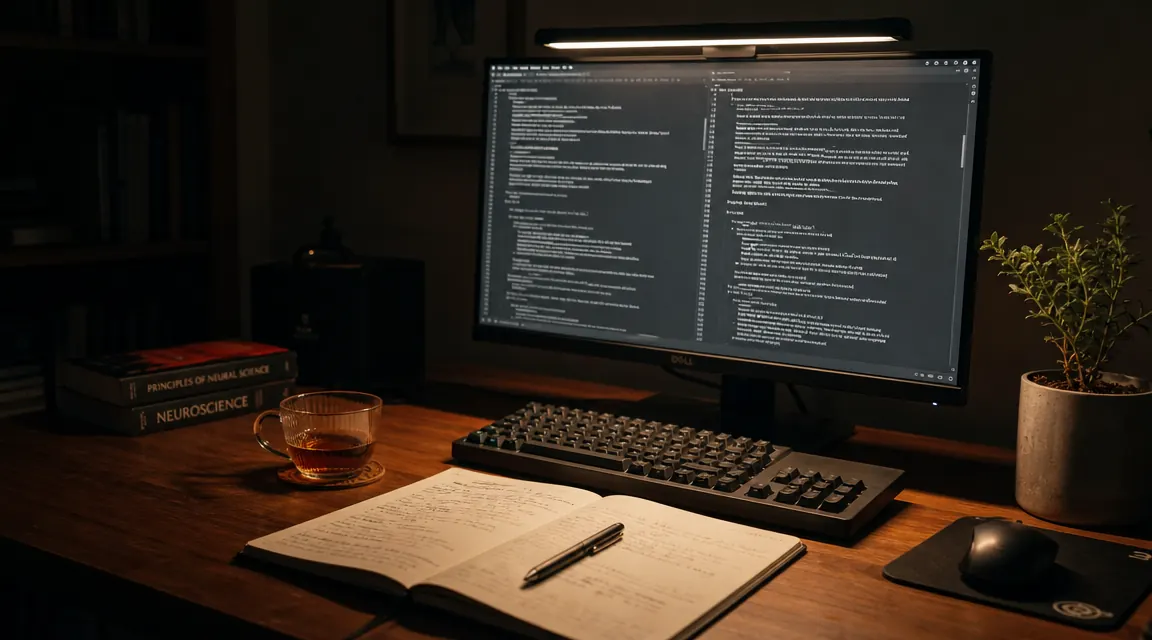
Most reviews of the Quntis monitor light bar tell you the same three things: it reduces eye strain, it costs in the budget range, and it is easy to set up. All of that is true. What they skip are the details that determine whether this lamp works perfectly for your specific situation or quietly frustrates you for six months before you figure out what is wrong. I have spent extended evening sessions with this lamp and I want to give you the version of the review that actually earns your trust rather than just confirming what the product page already says.
The Quntis Computer Monitor Lamp, ASIN B08DKQ3JG1, rated 4.6 stars from more than 13,000 reviews, is a USB-powered LED light bar that mounts on top of your monitor using a weighted magnetic clamp. At its current price it is the dominant choice in the budget monitor lamp category. It deserves that position for most buyers. But there are five things nobody mentions, and two of them could genuinely be dealbreakers depending on your setup.
The Quick Verdict
A genuinely effective budget monitor lamp that solves evening eye strain for the right setup, let down by a fixed lens angle you cannot adjust, a touch strip that fails with cold or dry hands, and no settings memory after you unplug it.
Amazon Check Today's Price →Your eyes hurt at the end of the day because your desk light is wrong, not because screens are bad for you.
The Quntis monitor light bar fixes the actual problem: uneven light between your screen and your desk surface. It clips on in four minutes and plugs into any USB port. See the current price and availability on Amazon.
Amazon Check Today's Price on Amazon →Thing One: The Lens Angle Is Fixed and You Cannot Change It
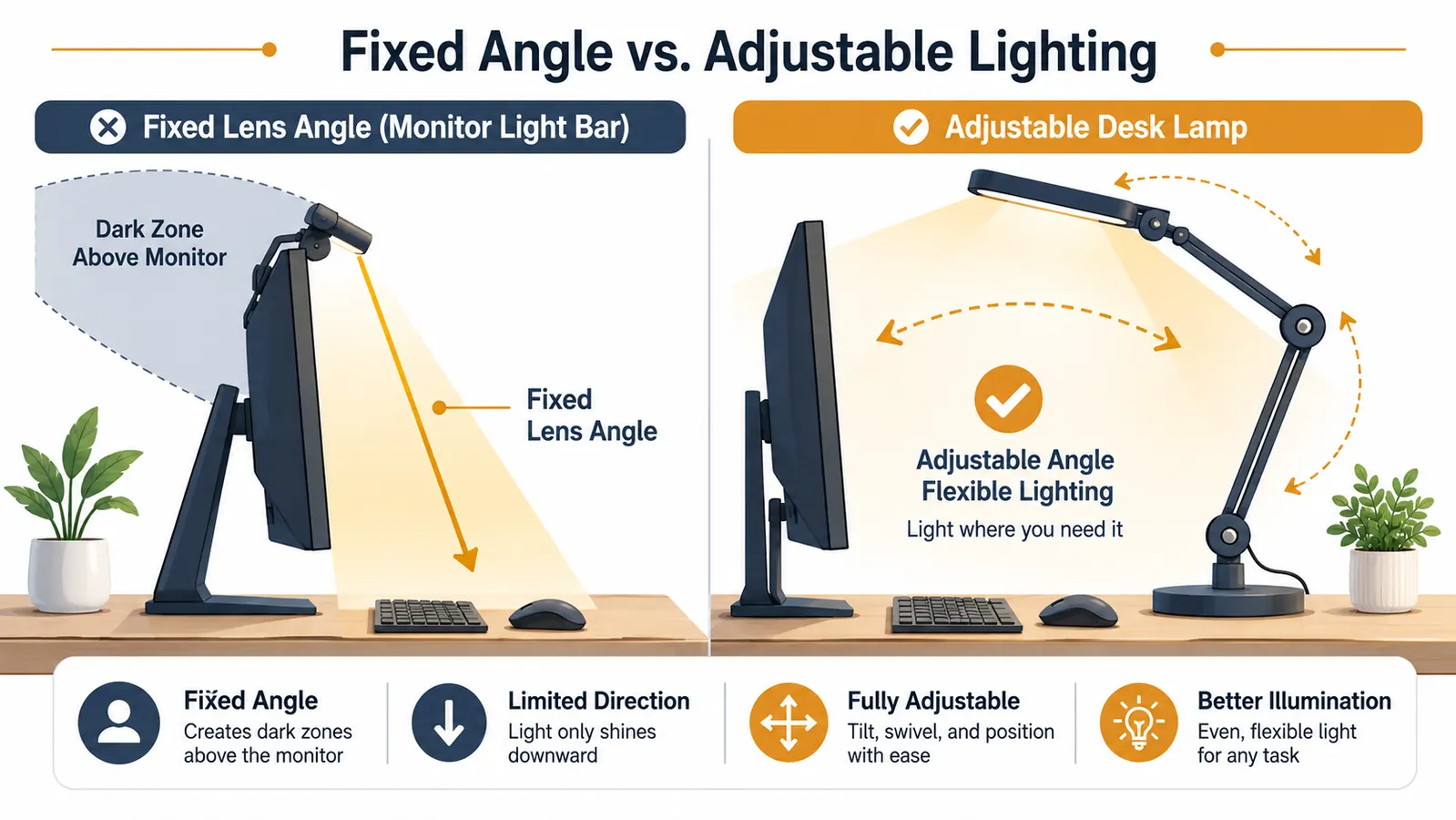
The Quntis uses an asymmetric lens that throws light downward onto your desk and forward toward your keyboard. This is the feature that prevents light from bouncing off the monitor screen and into your eyes. It works well. The problem is that the angle is fixed at the factory. You can tilt the entire lamp body forward or backward by about 30 degrees total by sliding it along the magnetic clamp, but the lens itself does not rotate or pivot independently.
Why does this matter? If your monitor sits unusually high, say on a stacked riser that puts the top of the screen above your sightline, the fixed downward angle means the light pool lands behind the keyboard rather than on it. If your desk is very shallow and the monitor is pushed close to the front edge, the same fixed angle can throw light onto your lap instead of the work surface. The sweet spot is a standard monitor position at roughly eye level, 24 to 28 inches from your face, sitting on a regular-height desk. If your setup matches that, the fixed angle is not a problem. If your setup is nonstandard in any way, check the math before ordering.
The BenQ ScreenBar has the same limitation, for what it is worth. Neither of these lamps is designed for adjustable ergonomic setups where the monitor height changes frequently. If you use a monitor arm and regularly move between standing and sitting positions with the monitor, a traditional adjustable desk lamp may actually give you more flexibility than either of these dedicated monitor lamps.
Thing Two: The Touch Strip Has a Cold-Hands Problem
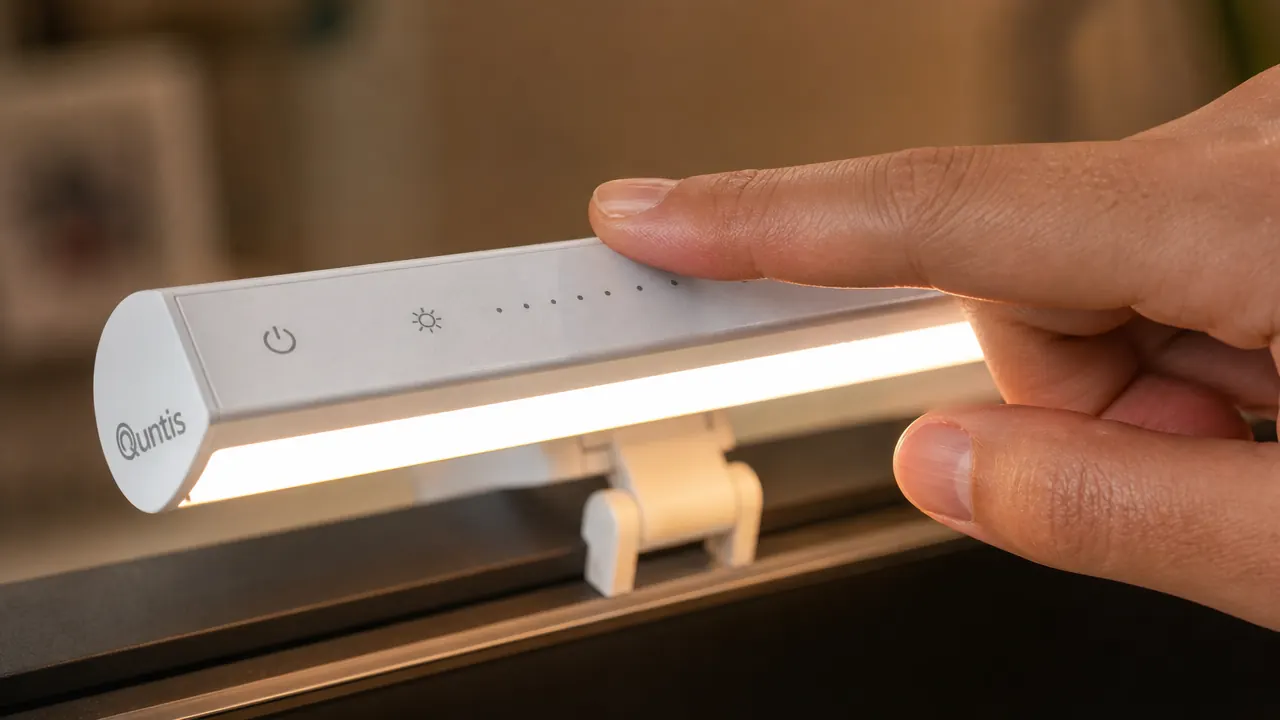
The top of the Quntis housing has a touch-sensitive strip that handles power on and off, brightness steps, and switching to auto-dimming mode. In reviews, this strip gets described as responsive and easy to use. That description is accurate at room temperature with normal hand moisture levels. It is not accurate in winter or in an air-conditioned office where your fingertips run dry.
Capacitive touch surfaces rely on the conductivity of your skin to register input. Cold, dry hands reduce that conductivity significantly. If you are someone who tends toward dry skin, or if you live somewhere with dry winters, or if you work in a room that runs cold, you will occasionally find yourself tapping the strip three or four times before it registers. This is not a defect in the unit. It is a physics limitation of capacitive touch that Quntis does not mention anywhere in the product description.
The fix is simple: use the physical rotary knob on the right side of the lamp for everything except power. The knob does not rely on capacitance. It turns mechanically and adjusts color temperature across the full range regardless of how dry your hands are. Once you learn to reach for the knob first and the strip second, the cold-hands issue essentially disappears. But knowing this ahead of time saves you the week of confusion where you think the lamp is malfunctioning.
If you are buying this for a nurse who works night shifts and comes home to cold hands at midnight, tell her to use the knob, not the strip. It will save her two minutes of frustration every single night.
Thing Three: It Has No Settings Memory
Every time you unplug the Quntis and plug it back in, it resets to its default brightness and color temperature. There is no onboard memory that saves your preferred warm-white 2700K evening setting. If you plug the lamp into a USB port that powers off when the computer sleeps, you will reset to default multiple times per session.
For most people who leave the lamp plugged in permanently, this is not an issue at all. The problem surfaces in three specific situations. First, if you unplug the lamp to bring it to a different room or a different desk. Second, if your USB hub powers down during sleep. Third, and this is the one that catches people most often, if the lamp is plugged into a USB port on the monitor itself and that monitor powers off completely when your computer goes to sleep rather than just dropping to standby. In that case, every time your machine wakes from sleep, you are setting the lamp again.
The workaround is to plug the Quntis into a USB port that stays powered regardless of sleep state, either a motherboard USB port on a desktop or the USB-A port on a laptop charger brick if your charger has one. That single cable swap eliminates the reset problem entirely.
Thing Four: USB Power Draw on Underpowered Ports
The Quntis draws approximately 5 watts from USB. This is within the USB 2.0 spec and well under the USB 3.0 ceiling, so in theory any USB-A port should handle it. In practice, some older laptops and budget USB hubs have ports that are rated for 500 milliamps but deliver less under load. When other devices are also drawing from the same hub, the Quntis can flicker at higher brightness settings.
I ran into this once with a four-port USB hub that was also running a wireless keyboard receiver, a phone charging cable, and an external hard drive. At 80 percent brightness the lamp would occasionally stutter for half a second when the hard drive spun up. Plugging the lamp directly into the laptop eliminated the problem immediately. If you are running the Quntis off a passive hub with several other devices, plug it directly into the computer or into a powered hub instead. Passive hubs and the Quntis do not always get along at full brightness.
Thing Five: Warm Mode Is Warmer Than You Expect
The Quntis advertises a range of 2700K to 6500K. At the warm end, 2700K is genuinely warm, closer to a traditional incandescent bulb than to the neutral-white LED look most people associate with desk lamps. If you have only ever used cool-white LED desk lamps, the warm setting will look orange on first use and you may assume something is wrong.
Nothing is wrong. A 2700K light source looks warm and amber compared to the blue-white of a phone screen or a cool-white ceiling fixture. For evening work where reducing blue-light exposure matters, this is exactly correct. But if you have a white paper document on your desk and you switch from 6500K to 2700K, the paper will look noticeably yellow. Some people find this unacceptable for document review. If accurate white-point rendering of paper documents is important to your work, settle at around 4000K rather than the full warm end. That gives you meaningful blue-light reduction without the orange cast that bothers some users on printed materials.
What the 13,000 Reviews Are Right About
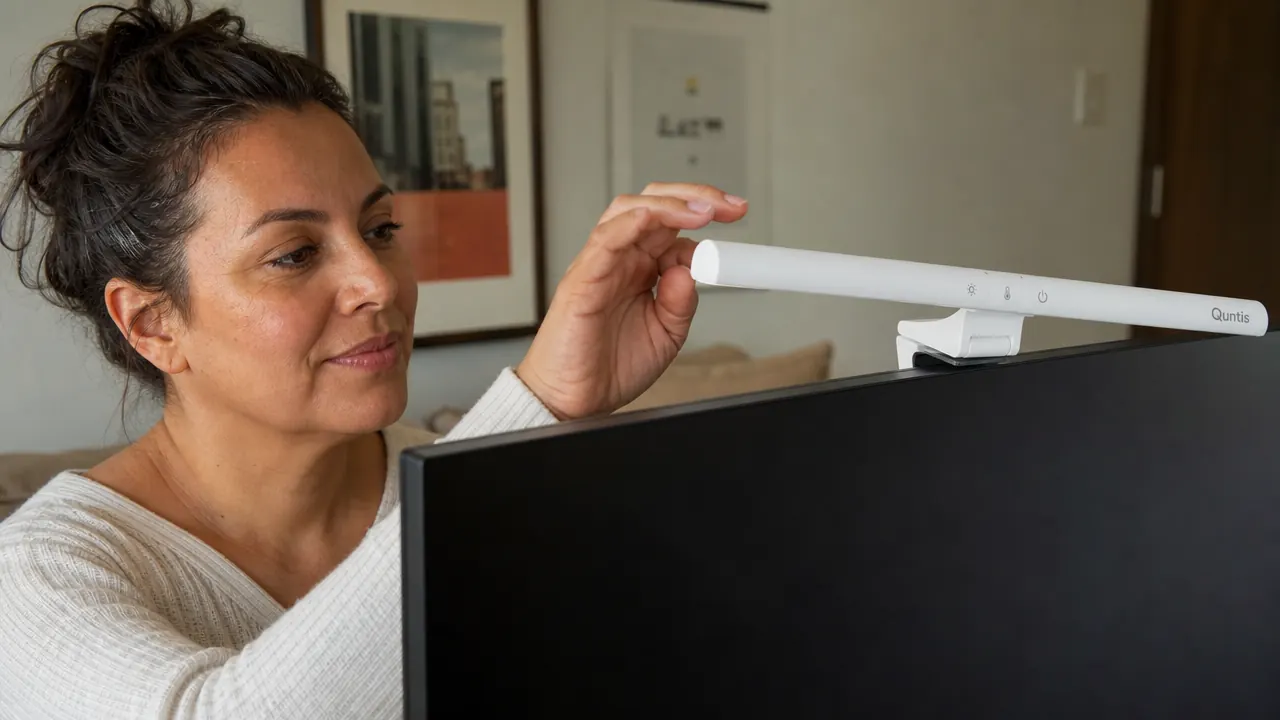
I want to be clear that the criticisms above are specific, not fatal. The core function of the Quntis works well. Evening eye strain from the contrast between a bright monitor and an unlit desk is a real and fixable problem, and the Quntis solves it reliably. The asymmetric lens design genuinely prevents screen glare, which is the main thing you are paying for. The color temperature range is wide enough to serve both late-night sessions and daytime focus work. The magnetic clamp is stable and does not mark the monitor bezel after extended use.
For standard desk setups, meaning a monitor at roughly eye level on a regular desk, plugged into a laptop or desktop with available USB ports, at room temperature, with a standard 8mm-to-15mm bezel, this lamp installs in four minutes and delivers on its promise. The 4.6-star rating reflects a product that works correctly for the majority of its buyers. I am writing about the minority cases because nobody else does, not because those cases outweigh the majority.
What I Liked
- Asymmetric lens prevents monitor glare even in a fully dark room at any brightness level
- 2700K to 6500K range is genuinely wide and transitions smoothly without stepping
- Physical rotary knob is reliable regardless of hand temperature or skin moisture
- Magnetic clamp does not scratch or compress the bezel after months of use
- USB-powered from any standard port, no separate wall adapter or cable clutter
- Auto-dimming mode handles gradual room-light changes without visible adjustment
Where It Falls Short
- Lens angle is fixed, not adjustable independently of the clamp position
- Touch strip requires adequate hand moisture, unreliable with cold or very dry skin
- No settings memory after power loss, resets to default on every unplug
- Passive USB hubs with multiple devices can cause brightness flicker at full power
- Warm mode is noticeably orange on paper documents, not ideal for printed material review
The Quntis Standard vs the Quntis Pro: Which Should You Buy?
Quntis makes two versions and the product pages can be confusing if you are comparing them side by side. The standard version covered in this review uses a fixed-pad magnetic clamp suited to bezels roughly 6mm and above. The Pro version has a wider clamp pad with an adjustable contact surface, adds a touch bar with finer brightness granularity, and includes a USB-C cable in the box alongside the USB-A. If your monitor has a thin bezel or you want more brightness steps without using the rotary knob, the Pro is worth the small price difference. If your monitor has a standard bezel and you are comfortable with the knob for color temperature, the standard version covers everything you need.
Neither version fixes the no-settings-memory limitation or the fixed lens angle. Those are design choices that apply to both. The Pro version does address the touch-strip sensitivity issue partially by making the touch bar wider and more forgiving, but it does not solve cold-hands scenarios completely. The knob is still the reliable control regardless of which version you own.

Who This Is For
The Quntis monitor light bar is the right buy if you do regular evening screen work on a standard monitor at a standard desk, your bezel is 6mm or thicker, you have a USB port available on the computer or a powered hub, and you are willing to take two minutes to set your preferred color temperature each time you plug it in. That describes most home office workers. The lamp pays for itself in the first week if you have been living with eye strain and assuming it is just an unavoidable part of screen work.
Who Should Skip It
Skip the standard version if you have a monitor with a thin frameless bezel under 6mm and do not want to measure first. Skip the Quntis entirely if you need the lamp height to change regularly because your monitor arm moves between sitting and standing positions, since neither Quntis version pivots independently to follow a moving monitor. Skip it if your USB situation is a crowded passive hub and you do not have a direct port available. In any of those cases, a traditional adjustable LED desk lamp aimed at the wall for bounce lighting, while less elegant, gives you more flexibility without the compatibility caveats.
For everyone else, this is still one of the most cost-effective eye-strain fixes you can put on a home desk. Just go in knowing what the reviews left out, set up your preferred color temperature the first night, plug it into a port that stays powered through sleep, and you will not need to think about it again for years.
Know the tradeoffs, decide clearly, and skip the buyer's remorse.
The Quntis monitor light bar is available on Amazon. If your setup matches the standard use case, it is the best value in its category. Check today's price and read the current Q and A section on the listing for the latest clamp-fit questions specific to your monitor model.
Amazon Check Today's Price on Amazon →